
Record your screen, voice and camera in Chrome
The free UseGuide Recorder captures a tab, a window or your whole screen with your microphone and camera. Press Stop and the recording opens in Studio, ready to edit, translate and share.
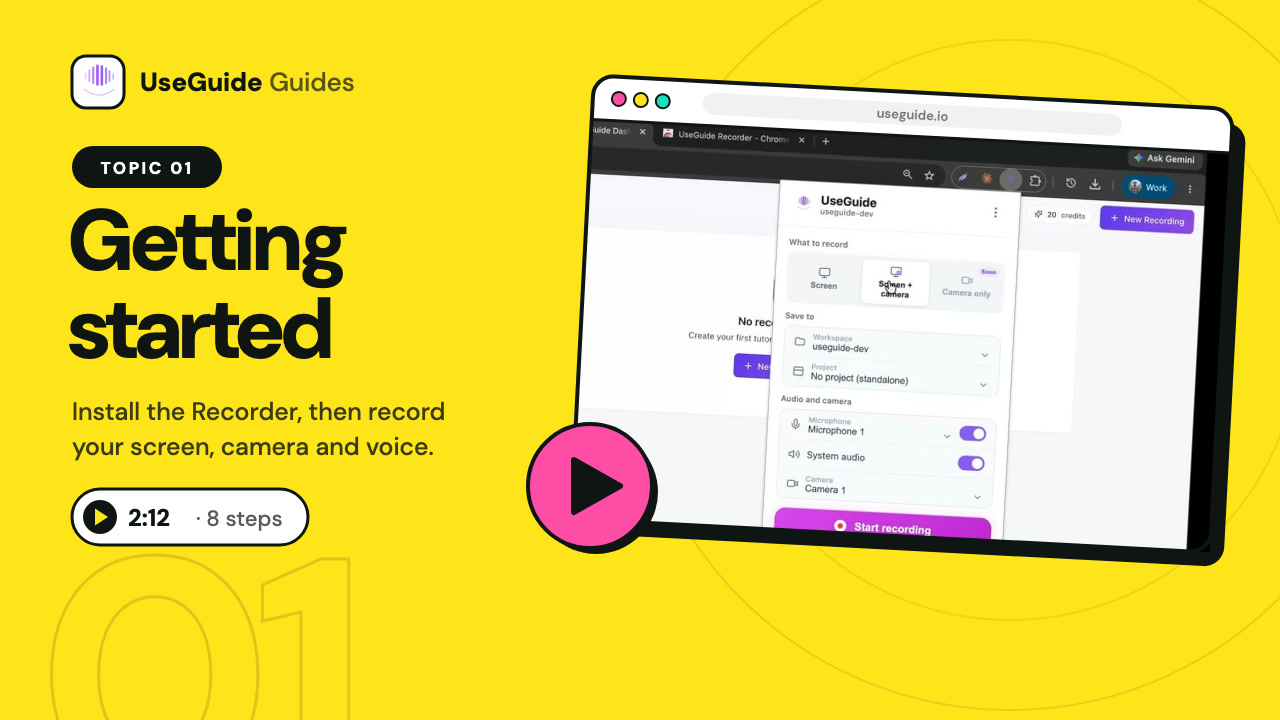
How screen and camera recording works
- 1
Install the Recorder
Add the UseGuide Recorder from the Chrome Web Store and pin it to your toolbar.
- 2
Pick what to record
Choose Screen, or Screen + camera to add yourself in a bubble. Pick your microphone and where the recording is saved.
- 3
Record, then Stop & Save
Share a tab, a window or your whole screen. Pause and resume as you go, then Stop & Save. It opens straight in Studio.
What you can do with screen and camera recording
Screen or screen + camera
Show one tab, one window or the whole screen, with or without your face.
Microphone and system sound
Record your voice, and the sound your computer plays when you need it.
A camera bubble that's yours
Change its size and shape, blur your background, use a picture instead, and add a name card.
Pause when you need to
Pause, resume, finish, or cancel and delete, from the bar on the page or the popup.
Saved where it belongs
Send each recording to a workspace, project and subproject, or keep it standalone.
No perfect take needed
Cut mistakes and fix the words afterwards in Studio.
Who uses screen and camera recording
Product walkthroughs
Show a customer exactly where to click, in your own voice.
Quick answers for support
Record once instead of typing the same steps again.
Training your team
Capture how a process works while you do it.
Questions about screen and camera recording
Works well with
Try screen and camera recording free
Create a free account, add the Chrome Recorder, and make your first tutorial today.